How to Connect Security Camera to Phone: A Step-by-Step User Guide
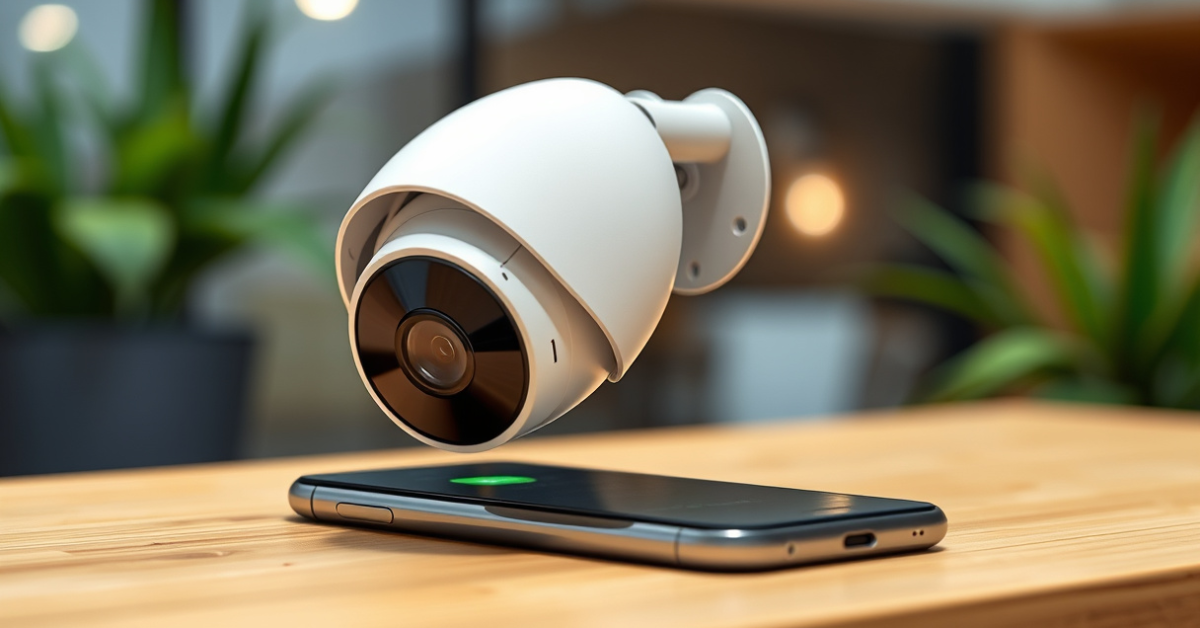
You can connect your security camera to your phone in just a few minutes using a dedicated mobile app and your home Wi-Fi or mobile data. Most modern security cameras support direct integration with smartphones by scanning a QR code on the camera or entering the camera’s unique ID into the app. Simply download the recommended security camera mobile app from your camera manufacturer, follow the in-app prompts to add a device, and ensure both devices are on the same network for quick pairing. The connection process is intuitive and doesn’t require advanced technical skills, transforming your phone into a remote surveillance monitor almost instantly.
Integrating a security camera with your smartphone isn’t just about remote control—it’s about expanding your peace of mind. Whether you’re traveling or just at work, real-time alerts, video feeds, and two-way communication are all possible once you link your camera and mobile device. Forgetting to set up this connectivity leaves you without vital tools that can help prevent and react to security incidents more efficiently.
This article guides you through selecting compatible cameras, preparing your network, installing and using top security camera mobile apps, troubleshooting the most common issues, exploring available features, and securing your video feed from potential threats. By the end, you’ll confidently master how to connect security camera to phone for seamless, around-the-clock monitoring.
Choosing the Right Security Camera for Phone Connectivity
Camera Types Compatible with Smartphones
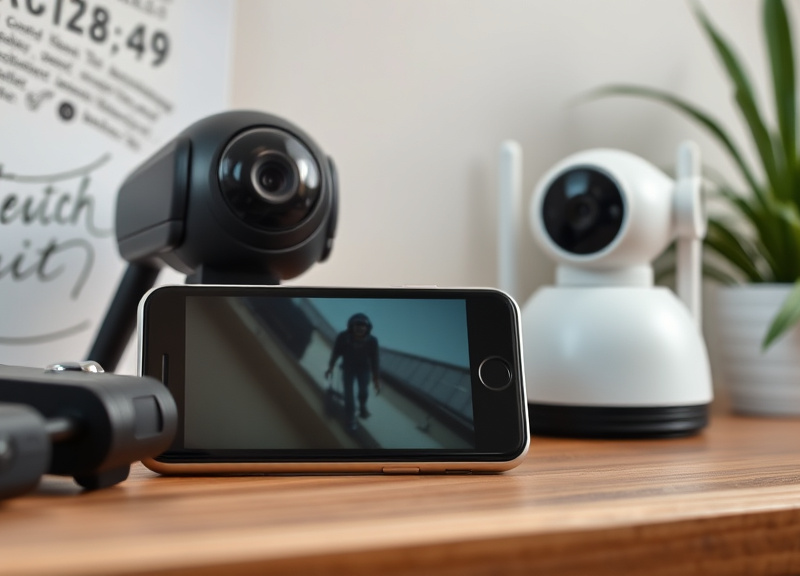
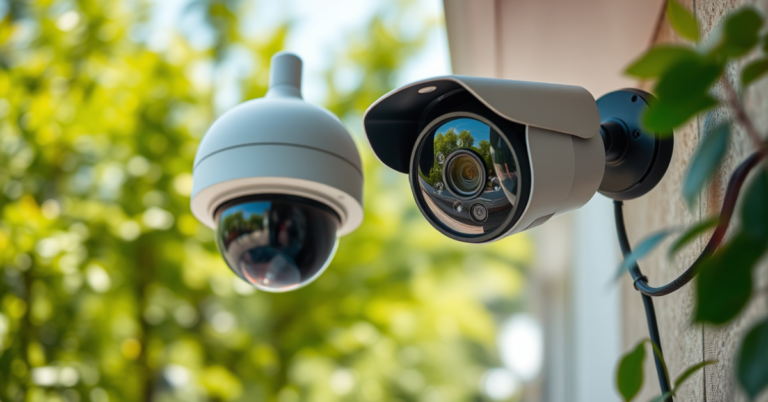
Not every security camera is built to connect directly with your phone. Look for IP cameras, Wi-Fi-enabled models, and smart home security brands such as Arlo, Ring, or Wyze. These often come with their own dedicated mobile apps, ensuring seamless and user-friendly smartphone integration.
Traditional analog CCTV cameras usually lack built-in wireless connectivity or app support. Opting for digital or network-based cameras eliminates the need for additional hardware and makes mobile viewing straightforward.
Consider wireless IP cameras for flexible installation
Smart doorbell cameras offer easy integration
Essential Features to Consider
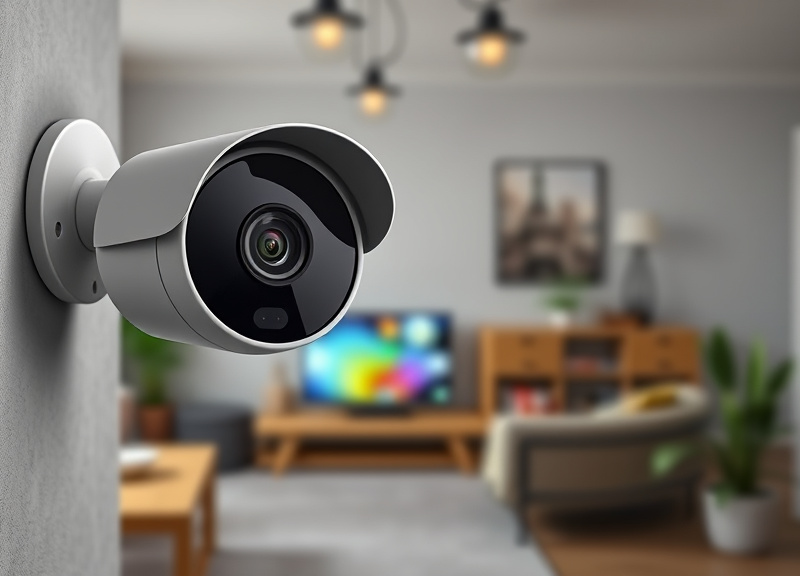
Before purchasing, check for app support for both Android and iOS, remote live-streaming capability, and notification features. Integration with home assistants (like Alexa or Google Assistant) can also improve your experience. Some cameras offer SD card recording, while others rely on cloud storage.
Resolution (HD or 4K), night vision, motion detection, and two-way audio further enhance usability. Knowing which features matter most to you helps narrow your selection significantly.
Preparing Your Network and Camera for Setup
Ensuring Reliable Wi-Fi or Internet Connection
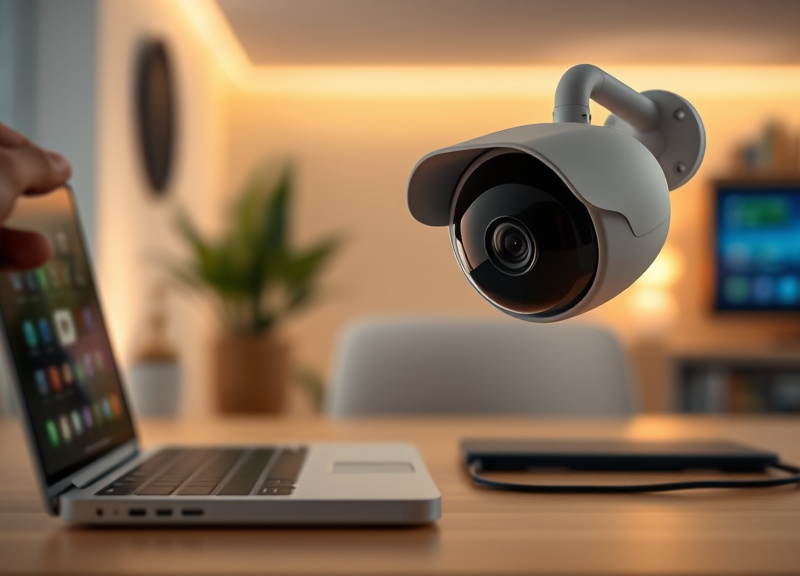
Smooth camera-to-phone connectivity depends on a stable Wi-Fi network. Place your camera within your router’s signal range, minimizing interference from walls and appliances. Use the 2.4GHz band, as most camera apps and devices prefer this frequency for initial setup.
If connecting from afar, ensure your upload bandwidth can handle the camera’s video stream. Fast, consistent internet is critical for clear, real-time notifications and video playback.
Check network coverage near the camera’s intended installation spot
Keep security settings (like WPA2) active but accessible for new devices
Powering and Resetting the Camera
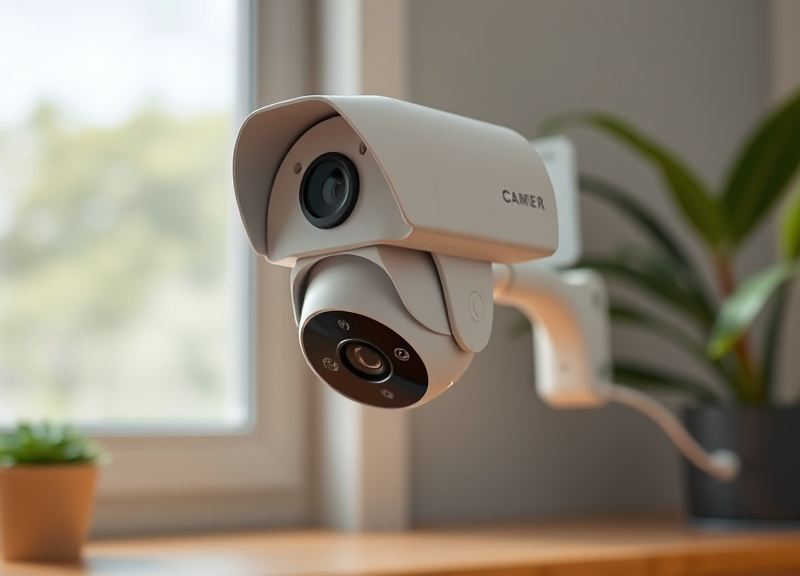
Make sure your security camera is properly powered before initiating setup. Some models use batteries, others require constant AC power—verify according to the manufacturer’s instructions. For initial pairing, plug in the camera and wait for indicator lights to stabilize.
If you run into connection issues, perform a factory reset as described in the manual. Most cameras reset via a dedicated button or pinhole—a useful step if syncing fails or switching networks.
How to Connect Security Camera to Phone via Official Mobile Apps
Downloading and Installing the Required App
Manufacturers like Nest, Ring, and Reolink offer proprietary security camera mobile app setup tools for iOS and Android. Search the App Store or Google Play using your device’s brand name to locate the correct option. Avoid generic third-party apps unless recommended to protect your data.
Once downloaded, sign up for a user account, as many systems require cloud registration for features like push alerts or smart notifications.
- Use only official apps for security reasons
- Create a strong, unique password for your camera account
For more on this, see our related guide: What Is the Best Security Camera System for Home and Business Use?.
Pairing Process: QR Codes and Device Discovery
Most modern cameras include a QR code on the device or packaging—simply scan it using the app to authorize the connection. The app may prompt you to enter a device ID or Wi-Fi details during setup. The pairing typically completes within minutes, confirming when your phone is linked.
If QR scanning fails, manual pairing methods like entering the device’s MAC address may be available in the app’s setup menu.
- Follow on-screen prompts for each step
- Allow camera and phone to share Wi-Fi during pairing
Customizing Notifications and Remote Monitoring Options
Setting Up Alerts and Recording Preferences
Customize your notification settings within the mobile app. Choose between motion-based alerts, sound detection, or continuous event logging. Fine-tune sensitivity to minimize false notifications while ensuring critical motions trigger alerts on your phone instantly.
Decide if you prefer local SD card storage, cloud backups, or a hybrid system for recorded footage. Many apps let you schedule recordings according to your daily routine.
- Adjust alert frequency to avoid notification fatigue
- Test settings with different lighting and times
Accessing Live Feeds and Playback Remotely
Once linked, you can review live video and access stored footage from anywhere with an internet connection. Many security camera mobile app setup platforms support multiple cameras streams in a single dashboard, allowing seamless surveillance across several locations.
Playback controls typically include pause, fast-forward, and event filtering features for targeted review of specific days or times.
- Use app widgets for quick live view access
- Enable two-way audio when monitoring remotely
Troubleshooting Common Camera-to-Phone Connection Issues
Resolving Wi-Fi and App Pairing Failures
If your camera won’t connect, verify you’re on the correct Wi-Fi band (2.4GHz), and that your phone is on the same network as the camera for first-time setup. Restart both your router and devices to clear connection glitches if needed.
Firmware updates can resolve compatibility problems—check within the app for available updates before restarting setup.
- Double-check Wi-Fi passwords
- Ensure no firewall blocks outgoing camera connections
For more on this, see our related guide: What Is a Good Security Camera? Expert Advice for Choosing the Best Option.
Handling App Crashes and Notification Delays
Unstable apps may require updating or reinstalling. Also, grant the necessary permissions for the app in your phone’s settings—location, notifications, and storage—since restrictions may block vital functions. Clear app cache regularly for smoother operation.
Notification delays may occur due to server congestion or sleep mode. Test real-time alerts after tweaking notification settings.
- Restart your phone if rebooting app doesn’t help
- Contact support if repeated issues persist
Securing Your Camera and Data After Setup
Strengthening Account and Device Passwords
Change any default passwords immediately after setup and use a combination of upper/lowercase letters, numbers, and symbols. Avoid using personal information and never reuse passwords across devices for added protection.
Most apps now offer two-factor authentication—enable it to significantly reduce unauthorized access to your video feed.
- Regularly update device firmware to patch security holes
- Don’t share camera access without trusted reasons
For a broader overview of security camera types, technology, and their applications, visit this resource for more information on video surveillance systems. More information on video surveillance systems.
Ensuring Privacy and Preventing Unauthorized Access
Adjust privacy settings in your app to limit access to family or trusted users only. Disable sharing options you don’t need, and routinely review connected devices or session history for suspicious activity.
For heightened privacy, prefer cameras supporting end-to-end encrypted streams. Immediately revoke access for any unfamiliar devices listed in your app’s account management menu.
- Audit app permissions on your phone regularly
Popular Security Camera Connection Methods Compared
This table compares the most common security camera-to-phone connection options, highlighting key pros and cons for app pairing, compatibility, and ease of use.
| Connection Method | Compatibility | Setup Simplicity | Live Stream Quality | Best Use Case |
|---|---|---|---|---|
| QR Code via Official App | Excellent (Most brands) | Fast, user-friendly | Consistently high | Home users, beginners |
| Manual IP Address Entry | Varied (Some models) | Requires technical knowledge | Varies | Enthusiasts, advanced users |
| Third-Party App Integration | Broad (Many brands) | Easy for general pairing | May be less stable | Multi-brand setups |
| Cloud-to-Cloud Linking | Excellent (Top smart brands) | Effortless, app-based | Excellent | Smart homes, offsite access |
| Local Network Only | Limited (wired cams) | Moderate, some manual steps | High (no cloud delay) | Off-grid or secure environments |
Frequently Asked Questions
Do all security cameras connect to smartphones?
No, only internet-enabled or IP security cameras typically connect directly to smartphones. Always check if the camera supports a dedicated mobile app or offers compatibility with third-party solutions before purchasing.
Can I receive motion alerts on my phone?
Yes, most modern security cameras let you enable motion or sound alerts in their mobile apps. Customize notification frequency, sensitivity, and event types to get real-time updates directly on your phone.
Is a Wi-Fi connection mandatory to use a security camera with a phone?
While most systems rely on Wi-Fi for cloud and mobile connectivity, some cameras can connect directly via local hotspot modes. However, Wi-Fi greatly simplifies setup and provides vital remote access features for most users.
Are cloud storage plans required for mobile app viewing?
No. Many cameras provide free live streaming and basic event history through the app without paid cloud storage. Still, subscribing unlocks advanced features like longer video retention, person detection, and multi-device access.
How many cameras can I add to my phone’s app?
The exact limit depends on the app and brand, but most support multiple cameras—sometimes up to 10 or more—for unified monitoring from one dashboard. Always check your app's specifications and subscription details if you plan to add several devices.
Key Takeaways
- Modern security cameras connect to phones via official apps and Wi-Fi for real-time alerts.
- Stable internet and compatible hardware ensure easy pairing and smooth video streaming.
- Customizing notifications and privacy settings maximizes security and convenience.
- Address common setup issues with firmware updates, resets, and strong passwords.
Conclusion
Successfully connecting a security camera to your phone empowers you with instant access to live video, alerts, and playback from virtually anywhere. The process starts with selecting a compatible, Wi-Fi-enabled camera, followed by preparing your network and using the official app for streamlined setup. Secure connectivity isn’t just a matter of convenience—it’s the cornerstone of a resilient home or business security strategy. By dedicating a few focused minutes to configuration and troubleshooting as needed, you gain both oversight and peace of mind.
For those seeking simplicity, official apps paired with QR code registration (such as offered by Ring or Arlo) provide the most intuitive experience. Enthusiasts interested in deeper control may prefer manual IP configurations or third-party platform integration. When choosing, weigh your desired features: do you want local recording, two-way audio, or integration with your wider smart home? Security camera mobile app setup processes generally cover these needs but ensure the brand and model you select matches your technical comfort and lifestyle demands.
Your surveillance doesn't have to be complicated or open to risk. Keep apps updated, maintain strong, unique passwords, and review your notification and privacy settings regularly. As security technology evolves, continually updating your approach ensures your system's speed, reliability, and safety. Now that you know how to connect security camera to phone, the next step is to choose the right camera and start building a reliable, mobile-accessible security system today.