How to Use an Old iPhone as a Security Camera: Step-by-Step Guide
Repurposing your old iPhone as a security camera is a cost-effective and efficient way to monitor your home without purchasing an expensive new device. All you need is a reliable Wi-Fi connection, a suitable mounting position, and the right app to start live streaming or recording video on your spare iPhone. This approach allows you to quickly set up real-time monitoring, whether it’s for your front door, baby’s room, or office space.
Why invest in a new camera when your retired iPhone can deliver high-quality surveillance? Using an old iPhone preserves its value, reduces electronic waste, and often provides clearer footage than a basic standalone webcam. Plus, with numerous dedicated security camera apps for iPhone available, remote access, motion detection, and cloud storage are now at your fingertips, all without the extra hardware.
In this comprehensive guide, you'll learn exactly how to convert your iPhone into a reliable security camera. We’ll cover everything from choosing the best security camera app for iPhone, setting up hardware and Wi-Fi, optimization tips, remote access, troubleshooting common issues, privacy considerations, and comparison of app features. Let’s turn your idle iPhone into a powerful security tool for your peace of mind.
Choosing the Best Security Camera App for iPhone
Top App Choices for Turning Your iPhone Into a Security Camera
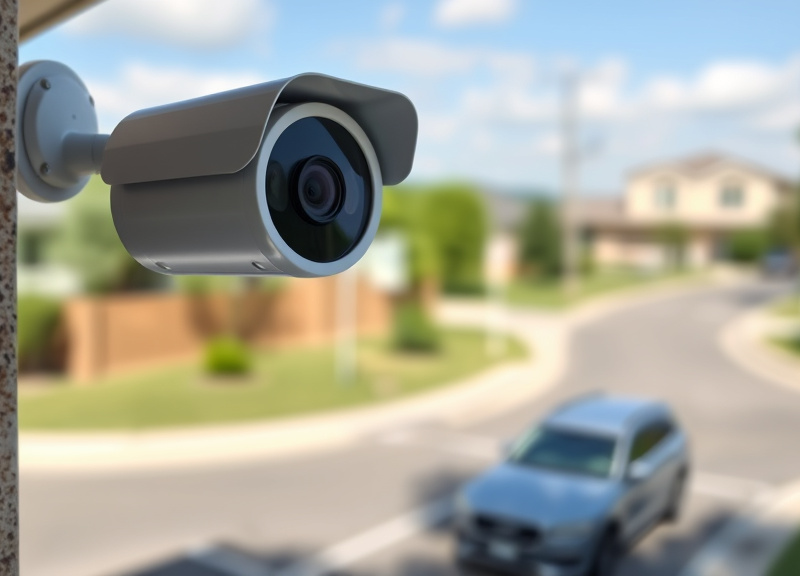
Several apps transform your old iPhone into a smart security device, with AlfredCamera, Manything, and Presence ranking among the most popular. These apps offer real-time streaming, motion alerts, and cloud storage—often with free basic plans and premium upgrades for more advanced features.
Selecting the best security camera app for iPhone depends on your needs. AlfredCamera offers simple setup and easy sharing, while Manything supports advanced motion detection zones and Presence allows multi-device integration. Each app enables remote access to live footage from your current smartphone.
- AlfredCamera: user-friendly interface
- Manything: customizable alerts
- Presence: supports multiple cameras
Comparing Free vs. Paid App Features
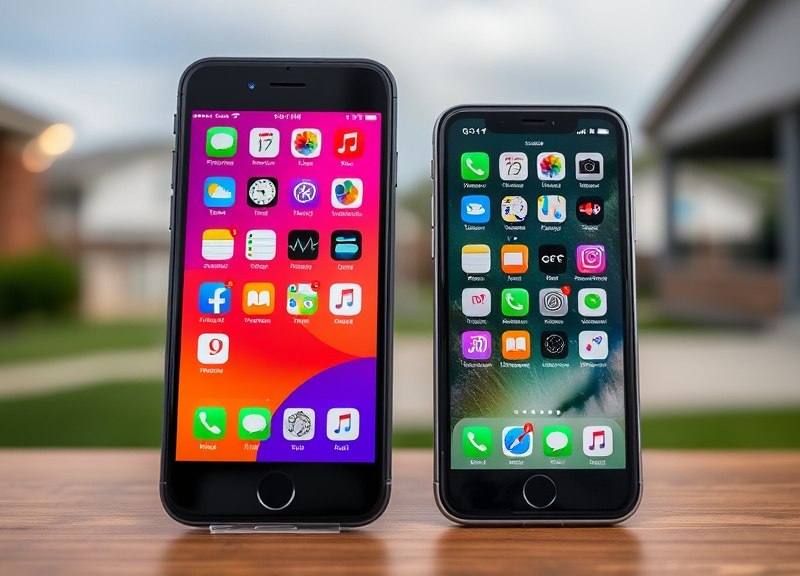
Free versions of security camera apps typically include basic live-streaming and limited motion detection. Paid upgrades unlock cloud recording, higher resolution, or longer video history, which can be essential for ongoing surveillance or sharing clips as evidence.
Consider your monitoring priorities and whether you need features like continuous recording, extended cloud storage, or multi-zone motion alerts before opting for a subscription. Many apps offer free trials, making it easy to evaluate which level suits your setup.
Preparing Your iPhone for Security Camera Duty
Resetting and Updating Your Device for Optimal Performance
Before converting your iPhone into a home security camera, perform a factory reset to remove old apps and data. Next, update the phone to the latest iOS version it supports, ensuring compatibility, security, and optimal performance.
A clean iPhone runs security camera apps faster and is less vulnerable to glitches. Remove unnecessary background processes and disable non-essential notifications to prevent interruptions during monitoring.
- Back up and wipe the device
- Install security app as the only major application
- Update all essential system settings
Essential Power and Mounting Solutions
Consistent power is critical for uninterrupted coverage. Leave your iPhone plugged into a reliable charger, using a surge protector to avoid outages. Lean toward MFi-certified cables to prevent overheating or battery swelling over long-term use.
Mount the iPhone in the target area with a stable, adjustable holder or tripod. Ensure the camera lens is unobstructed and clean for sharp footage. Choose a discreet position to minimize tampering or theft.
- Opt for wall mounts or clip-on phone holders
- Regularly check cable and adapter integrity
Setting Up and Connecting to Wi-Fi
Optimizing Wi-Fi Connectivity for Video Streaming
Strong, uninterrupted Wi-Fi is essential for smooth video streaming and mobile alerts. Position your wireless router as close as possible to your iPhone’s placement, and opt for the 2.4GHz band for better range if needed.
Run speed tests and ensure upload and download speeds meet the app’s requirements. Address Wi-Fi dead zones with extenders or mesh networks to maintain stable security footage—especially in large homes or offices.
- Test internet speed regularly
- Limit other devices on the same band
- Use Wi-Fi extenders if necessary
Enabling Secure Remote Viewing
Security camera apps typically offer remote live streaming via secure log-in. Set strong app passwords and enable two-factor authentication whenever available for added protection.
Monitor network activity, and check your app’s privacy settings to control who can access the video feed. Change passwords regularly to reduce unauthorized access risks.
- Two-factor authentication setup
- Strong password suggestions
Optimizing Video Quality and Motion Detection
Maximizing Field of View and Image Resolution
Position the iPhone to cover entryways, high-traffic areas, or valuables, using landscape orientation for wider coverage. Adjust camera settings in the security camera app for the best balance between resolution and bandwidth.
Disable digital zoom to avoid grainy footage, and opt for natural lighting whenever possible. Clean the lens regularly, and set the phone to 'Do Not Disturb' mode to prevent screen interruptions.
- Use landscape orientation for wide angles
- Avoid pointing at reflective surfaces
Fine-Tuning Motion Detection Sensitivity
Proper motion detection reduces false alerts and conserves storage space. Most apps let you adjust sensitivity and define detection zones to focus on specific areas like doors or hallways, preventing notifications from pets or passing cars.
Review alert history and adjust thresholds as needed. Some apps allow scheduling periods when detection is most relevant, minimizing unneeded notifications during busy times.
- Adjust motion zone boundaries
- Experiment with sensitivity sliders
Remote Access and Notifications with the Main Keyword
Getting Real-Time Alerts on Your Main Device
After configuring your app, you’ll receive push notifications when motion is detected or new footage is recorded. Most apps send alerts instantly to your active smartphone, tablet, or email. Fine-tune the notification settings to avoid excessive pinging and ensure prompt action when needed.
Test out the alert and video playback features before fully relying on your setup for home protection. Properly configured alerts are core to how to use an old iPhone as a security camera effectively.
- Set up SMS or email alerts as backup
Viewing Live and Recorded Footage Anywhere
Remote access is a standout feature of the best security camera app for iPhone. Log in to your app account from any location to view live streams, captured video, or event highlights—even while traveling or at work.
Opt for cloud-based video storage if you need quick file sharing or off-site backup. Download and archive important clips as needed, especially after notable incidents or alerts.
- Check app compatibility across devices
- Back up important event footage
Troubleshooting and Privacy Considerations
Common Issues and How to Fix Them
Common problems include app crashes, Wi-Fi disconnects, and grainy video. Reboot the iPhone periodically, clear app caches, and check for software updates frequently to maintain reliability and prevent downtime.
If your video feed freezes, resetting the router or repositioning the iPhone can restore connectivity. Always verify power and cable integrity during troubleshooting steps.
- Restart device weekly
- Keep charger/power source checked
For a more detailed technical background, see this thorough iPhone security camera repurposing overview. iPhone security camera repurposing overview.
Protecting Privacy and Securing Your Video Feed
Prioritize privacy by choosing apps with encrypted video streams and safe authentication protocols. Review the app’s privacy policy to verify how your data is handled and which permissions are required.
Physically secure the iPhone to prevent theft, and disable microphone or features you don’t intend to use. Delete archived footage regularly to reduce the risk of personal videos leaking.
- Use apps with end-to-end encryption
- Restrict viewing access to trusted accounts
Security Camera App Comparison: Features and Value
Here we compare leading security camera apps for iPhone, examining free and paid features, ease of use, and remote access to help you choose the right solution.
| App Name | Free Features | Paid Features | Max Video Resolution | Remote Access |
|---|---|---|---|---|
| AlfredCamera | Live streaming, basic motion detection | Cloud storage, HD recording, ad-free | 720p | Yes (iOS, Android, Web) |
| Manything | Live streaming, motion clips | Custom detection zones, extended storage | 1080p | Yes (iOS, Web) |
| Presence | Live view, 2-way audio | 7-30 day cloud archive | 720p | Yes (iOS, Web) |
| AtHome Camera | Live view, motion alert | 24/7 recording, timeline playback | 1080p | Yes (iOS, Android, Web) |
| IP Webcam | Local streaming, image capture | Cloud, multi-camera support | Varies | Yes (Web) |
Frequently Asked Questions
Can I use my old iPhone as a security camera without Wi-Fi?
A stable Wi-Fi connection is necessary for live streaming and remote alerts. Without Wi-Fi, you can only use the iPhone for local video recording and playback, not real-time access.
Will using my iPhone as a security camera harm the battery?
Constant charging may cause battery degradation over time. For best results, use a reliable charger and avoid letting the phone overheat. Consider setting your phone to optimized battery charging.
How do I prevent unauthorized access to my security feed?
Secure your app account with strong, unique passwords and enable two-factor authentication. Use apps with secure, encrypted video streaming and review privacy settings regularly to protect your footage.
Is it legal to record video surveillance at home?
Recording video in your own home for security is generally legal, but avoid placing cameras in areas with an expectation of privacy. Laws vary by region, so check local regulations before recording others.
Can I control more than one iPhone security camera with one app?
Yes. Many security camera apps, including Presence and AlfredCamera, support multiple devices — allowing you to monitor several rooms or angles from a single account and app interface.
Key Takeaways
- An old iPhone can serve as a smart, cost-effective security camera.
- Choose a security camera app that fits your needs and setup.
- Optimize Wi-Fi, power, and settings for maximum reliability.
- Prioritize privacy with strong security measures and trusted apps.
Conclusion
Transforming an old iPhone into a security camera is not just a clever way to give your retired device new value—it's an effective, budget-friendly alternative to dedicated surveillance equipment. By selecting the right security camera app, ensuring robust Wi-Fi, and optimizing the mounting and power setup, you can achieve high-quality, real-time monitoring tailored to your unique space. With dozens of security apps available and myriad features to choose from, this decision-making process boils down to understanding your monitoring priorities, technical environment, and data security needs.
If you require basic video streaming for an entryway or small room, free versions of AlfredCamera or Presence typically suffice. For more advanced coverage—including extended cloud storage or motion detection zones—Manything or AtHome Camera’s premium tiers add immense value. Those seeking the best security camera app for iPhone should assess setup friendliness, remote access quality, and privacy controls before deciding. For homes with multiple spaces, leverage apps that support multi-camera monitoring to expand coverage without extra cost.
Ready to get started? Download a top-rated security camera app, reset and update your old iPhone, and find the perfect mounting spot with consistent power and Wi-Fi. Whether you monitor your home full-time or just want a backup camera for trips away, this approach lets you safeguard what matters most, with technology you already own. Smart surveillance is truly just a few taps away.