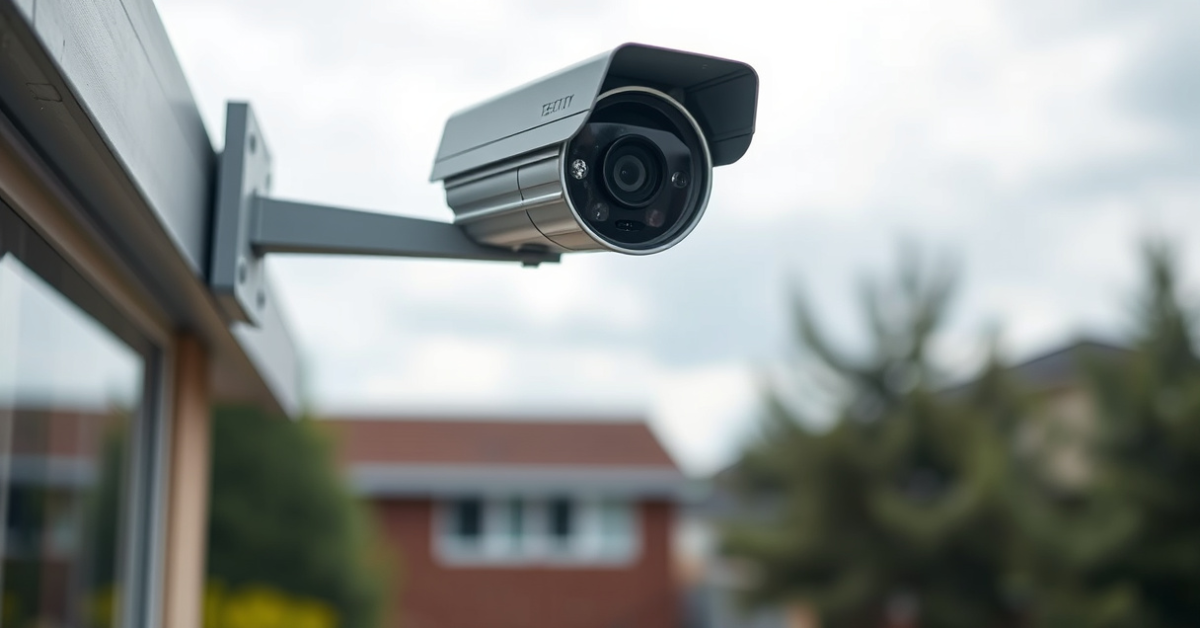
How to Tell If a Security Camera Is On: Simple Visual and Technical Signs
You can usually tell if a security camera is on by checking for signs like glowing infrared LEDs at night, movement of the camera lens, or a visible blinking light. Many modern security cameras emit clear indicators of operation, though some advanced or hidden models are specifically designed to minimize visible cues. When observing a camera, look for subtle details such as a faint red glow around the lens in low light or listen for soft clicking sounds that indicate active recording or night vision switching.
Determining if a security camera is actively monitoring you matters for both personal privacy and peace of mind. Whether you are in a public setting, rental property, or your own home, being able to spot which cameras are operational empowers you to take control over your personal security and make informed decisions about your safety.
This article covers how to tell if a security camera is on by identifying the most common visual, audio, and technical cues, explains what to look for in different types of cameras, and even discusses how to detect hidden cameras. You’ll walk away ready to assess any environment for active surveillance, whether you’re a security-minded homeowner or a privacy-conscious traveler.
Visual Cues: Spotting If a Security Camera Is On
Check for LED Indicator Lights
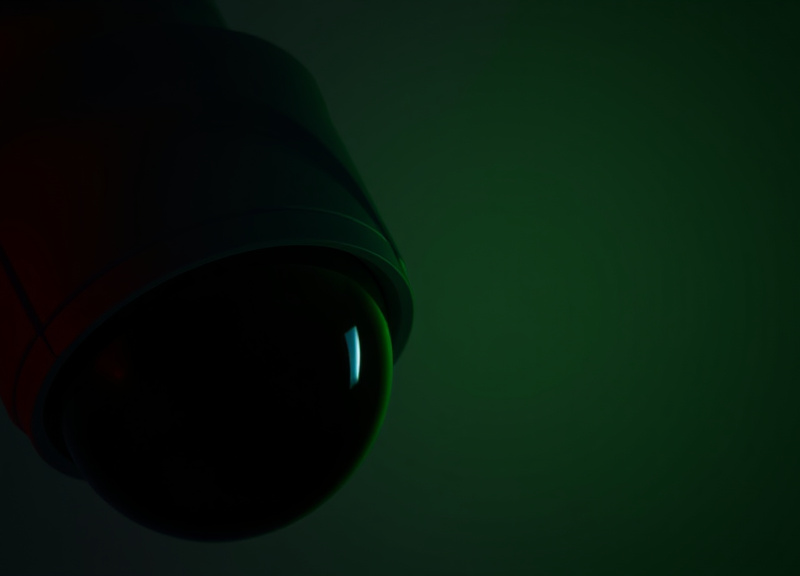
Most standard security cameras have small LED lights that turn on to indicate they are active or recording. For indoor cameras, these lights are often green, red, or blue, and are located near the lens itself. Outdoor cameras may have a more discreet indicator, but in low light or nighttime conditions, the LEDs can be quite visible and signal that the camera is powered and functional.
Observing these lights is the quickest way to check if a camera is on. Sometimes, cameras have the option to disable these lights for stealth purposes, but many consumer-grade models keep them enabled by default, especially when motion is detected or the camera switches to night vision mode.
- Look for a steady or blinking LED near the lens
- Check for a faint red glow (night vision)
- Observe changes in the light when moving nearby
Lens Movement and Audible Mechanisms
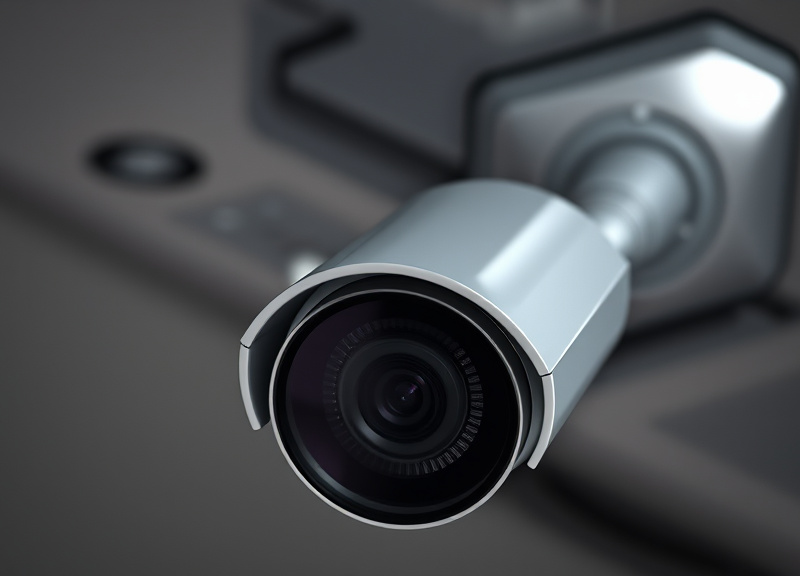
Many modern PTZ (pan-tilt-zoom) cameras actively move to follow motion or adjust their angle for a better view. These movements are usually accompanied by a soft whirring or clicking sound, especially when the device is repositioned in response to detected activity.
If you notice the lens physically moving, or hear these sounds, that's a strong sign the camera is on and actively monitoring. In public or business spaces, dome cameras may be less obvious, but subtle vibrations or quiet mechanisms can still give them away.
Infrared Signs: Night Vision and Hidden Camera Detection
Detecting Infrared LEDs
Night vision security cameras rely on infrared (IR) LEDs, which are not always visible in daytime. At night or in dim lighting, look for a dim red glow around the lens. Some phone cameras can also pick up IR light; pointing your phone's camera toward a suspected lens may reveal a cluster of purple or white lights on your screen that are otherwise invisible.
The presence of these IR LEDs strongly suggests the camera is on and in night vision mode. For covert cameras, you may need to inspect closely or use devices designed to detect IR scattering in a dark environment.
- Observe for red glows in low light
- Use your smartphone camera to scan for IR lights
How to Detect Hidden Cameras
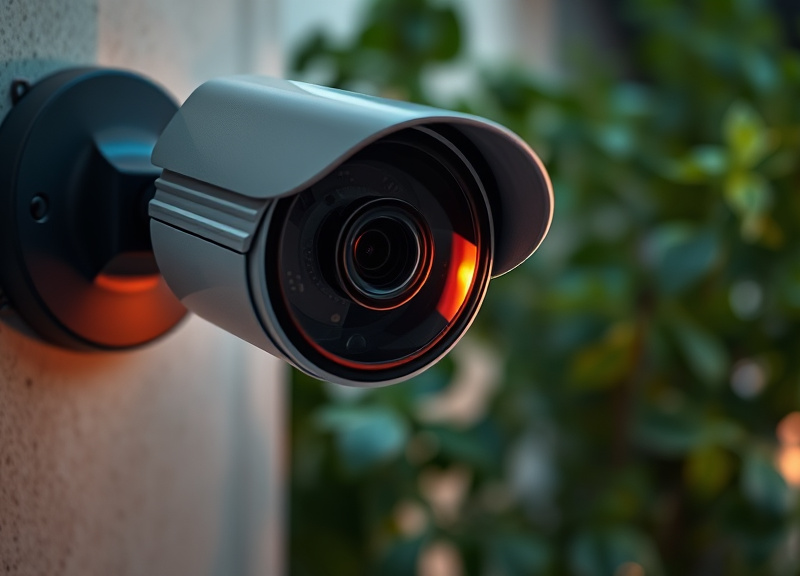
If you're concerned about concealed devices, several tricks can help with your effort to detect hidden cameras. Reflective lenses may glint when a flashlight is swept across suspicious objects like smoke detectors, digital clocks, or air purifiers.
Professionals often use RF detectors or smartphone apps to scan for wireless signals emitted by active surveillance devices. These tools can pick up the presence of a powered, transmitting camera even if its visual cues are disguised.
- Sweep rooms with a flashlight for glints
- Use RF detectors to scan for camera signals
- Inspect common hiding spots: clocks, vents, power outlets
Technical Tips: Checking Security Camera Feeds
Access Camera Feeds Directly
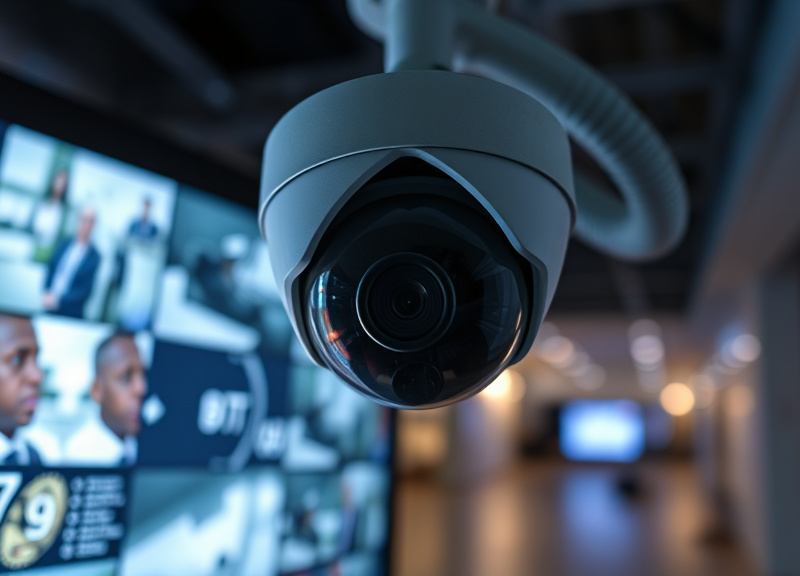
For property owners or tenants with access, checking the live camera feed is definitive. Most modern systems provide web or app-based interfaces to view in real time. If the feed displays current activity, the camera is clearly on and transmitting.
If you encounter issues accessing the feed, it could be a sign of power interruption, network failure, or intentional deactivation—indicating the camera is off or malfunctioning.
- Check your security app for live streams
- Test for real-time recording during activity
- Note error messages or blank feeds
For more on this, see our related guide: What Is the Best Security Camera System for Home and Business Use?.
Check Network Activity
Networked security cameras generate data traffic when active. Routers with admin tools can display connected devices; a live camera will appear listed or show frequent uploads, especially to cloud storage or NVR systems.
For power users, analyzing network logs can reveal upload patterns unique to streaming video, helping to confirm if cameras are live even if you lack direct software access.
- Identify camera IP addresses on your network
- Monitor upload traffic from camera devices
Understanding Security Camera Types and Their Indicators
Traditional Wired Cameras vs. Wireless Models
Traditional wired security cameras usually have visible power cables and may rely on analog video signals, with clear signs like LED status lights and physical lens movement. Wireless models often have internal batteries and Wi-Fi antennas, sometimes offering more subtle clues of being active.
It's useful to note that battery-powered cameras may enter standby or hibernate to conserve energy, only activating lights or movement detection when triggered, so absence of visual signs doesn't always mean the camera is off.
- Wired: constant LEDs, cable connections
- Wireless: intermittent activity, quick power cycles
Smart Cameras and Cloud-Based Systems
Smart cameras integrated with cloud platforms may only activate when they detect motion, sending notifications or clips. Their LEDs may stay dark in standby mode, illuminating only during alerts or live streaming. This can make it harder to assess if they're on at all times.
Always check for subtle changes when approaching the camera, such as a brief flash or movement, as these indicate real-time monitoring or alert activation in response to your presence.
Privacy Concerns and Legal Considerations
Know Your Rights with Security Cameras
Local laws vary greatly on whether recording is permitted in private or shared spaces. In most jurisdictions, mounting cameras in bathrooms, bedrooms, or other private areas is illegal. Even when cameras are in public or business spaces, clear signage may be required.
Understanding your rights ensures you know when you can request removal or visibility of cameras, and helps you detect hidden cameras in places where they are not allowed by law.
- Research local privacy and surveillance regulations
- Look for mandatory signage or camera notifications
Privacy Tools to Help You Detect Hidden Cameras
If you're traveling or staying in rental accommodation, consider using specialized privacy tools to detect hidden and active cameras. Portable RF and lens-finding detectors can reveal both powered and off-grid devices that standard visual inspection might miss.
Apps that scan for unfamiliar networks or suspicious Wi-Fi devices can also aid your efforts to detect hidden cameras. Always use multiple detection methods for maximum coverage.
- Carry an RF detector for travel
- Test smartphone apps for scanning local Wi-Fi devices
Troubleshooting Inactive or Malfunctioning Security Cameras
Diagnosing Power and Connectivity Issues
If you expect a camera to be on but see no signs, start by checking its power source. For wired cameras, ensure the cable is securely connected and the outlet is supplying electricity. For wireless cameras, inspect battery levels or recharge as needed.
Connectivity problems can also render cameras inoperable. Test Wi-Fi or network connections, and reboot both the camera and router to see if functionality resumes.
- Verify power supply and cable security
- Check battery charge on wireless cameras
- Restart devices to fix connectivity issues
For deeper background and history on surveillance devices, see the comprehensive security camera article on Wikipedia. security camera article on Wikipedia.
Firmware and Software Glitches
Occasionally, cameras may appear off due to firmware or software errors. Updating the camera's firmware can resolve common bugs and bring offline units back online. Consult your manufacturer's support resources for download and installation instructions.
It’s also a good practice to periodically reset your camera settings if repeated outages occur, as this can correct misconfigurations and restore default operational indicators.
- Update firmware regularly
- Reset settings for persistent problems
- Contact support for advanced troubleshooting
Security Camera Operating Indicator Comparison
Here’s a quick comparison of the visual and technical cues you can use to identify whether different types of security cameras are on.
| Camera Type | LED Indicators | Lens Movement | Network Signals | Hidden/Covert Features |
|---|---|---|---|---|
| Wired Bullet Camera | Bright LED, usually steady | Possible with PTZ | Consistent connection | Rare |
| Wireless Indoor Camera | Small LED or none | Occasional pan/tilt | Wi-Fi data spikes | Sometimes |
| Dome Camera | LED sometimes hidden | Minimal movement | Active uploads | Occasional |
| Smart Cloud Camera | LED only on activity | No movement usually | Upload on event | Frequent standby |
| Hidden Camera | None or disguised | Almost never moves | Occasional spikes | Main feature |
| Outdoor IR Camera | Infrared glow at night | Some motion tracking | Ethernet/Wi-Fi | Sporadic |
Frequently Asked Questions
What is the quickest way to check if a security camera is on?
Look for visible LED indicator lights or a red infrared glow near the lens, especially in low light. Watching for lens movement or listening for subtle sounds can also provide confirmation.
Can security cameras record audio as well as video?
Many modern security cameras have built-in microphones and can record audio, though recording laws vary by region. Always check the camera’s specs and confirm local legal requirements regarding audio surveillance.
How can I detect hidden cameras in a rental or hotel room?
Use a combination of visual inspections, flashlight sweeps for reflections, and dedicated RF or lens detectors. Smartphone apps that scan for unfamiliar networks can help identify wireless or smart hidden cameras.
Are all security cameras visible at night?
Not all cameras are visible in darkness, but night vision models often emit a faint red glow from infrared LEDs. Some hidden cameras suppress this glow to avoid detection.
Can I turn off a security camera’s indicator lights?
Most consumer cameras allow you to disable LED indicators via their settings. However, turning off these cues may reduce deterrence and could breach terms of service in shared property environments.
Key Takeaways
- LEDs and infrared glows reveal if a camera is on.
- Camera movement or network activity are strong operational signs.
- Hidden cameras require special detection methods.
- Know your rights about camera usage and privacy laws.
Conclusion
Ultimately, knowing how to tell if a security camera is on comes down to a blend of visual observation and technical assessment. By systematically checking for LED indicators, infrared glows, lens movement, and network activity, you can quickly determine which cameras are live in any setting. Awareness of your surroundings and device types is crucial and empowers you to make confident decisions about your privacy—whether at home, in public spaces, or inside unfamiliar rentals.
For those particularly concerned about privacy or seeking to detect hidden cameras, combining techniques—like flashlight sweeps, using RF detectors, and scanning Wi-Fi networks—provides a comprehensive approach. Wired bullet cameras typically offer clear visual signs, while cloud-based or hidden cameras may require close inspection or specialized tools. Evaluate your specific situation: if straightforward cues are missing, technical methods like app-based feed checks or network monitoring offer clarity.
When in doubt, follow up by researching your local laws and, if needed, seeking professional help with detection. Regularly updating security system firmware and using privacy tools while traveling increases peace of mind. Stay vigilant, make use of available detection strategies, and always prioritize your personal privacy and safety in any environment with surveillance technology.